Veeam Data Platform 13.1 has been available for a few weeks already.
As described in a previous post, there are a great many new features.
In this article, we’ll take a closer look at one of them: the Application Backup Repository (ABR).
VEEAM ABR
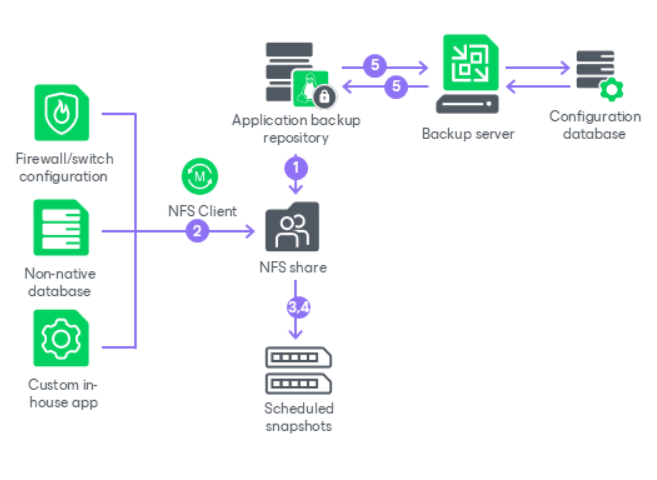
The Application Backup Repository provides an NFS-based backup destination, offering the benefits of a managed, secure appliance and immutable backups that are centrally controlled from your Veeam Backup & Replication installation.
This feature serves as a universal solution for all applications or devices—such as databases or network devices—that can save their native backups to an NFS repository.
Consider all those legacy, custom, or non-Veeam-supported applications for which you can only configure a dump to an external NFS share: with the implementation of ABR, Veeam can finally serve as a centralized repository without actually knowing the type of data being written.
Other important features and benefits of ABR include:
Immutable storage snapshots (ZFS-based)
Access control (Kerberos or IP/host)
Centralized snapshot management (scheduling and restores) from the VBR console
Support for instant restore/instant export for minimal RTOs
Ability to create secondary copies to other Veeam repositories
Note: Since enabling NFS services increases the host’s attack surface, enabling ABR requires approval from the Security Officer (if configured in your Veeam environment).
VEEAM ABR – TECHNICAL DIVE
ABR is based on two main technologies: the Veeam Hardened Repository, an evolution of the highly popular Linux Hardened Repository, and the use of storage pools based on ZFS, a file system characterized by advanced volume management and data integrity features.
The VHR is deployed using the Veeam Infrastructure Appliance (VIA), a Rocky Linux distribution released by Veeam that contains only the services and components necessary to install the various packages based on the role we wish to assign, and which meets high security standards such as DISA STIG and FIPS.
The introduction of additional ZFS-based storage, as an alternative to the XFS file system typically used by the VHR, allows applications to access an NFS share from one or more virtual volume pools.
At the same time, this type of file system enables the use of ZFS snapshots—read-only copies of the original volume that ensure data protection against potential modifications or deletions.
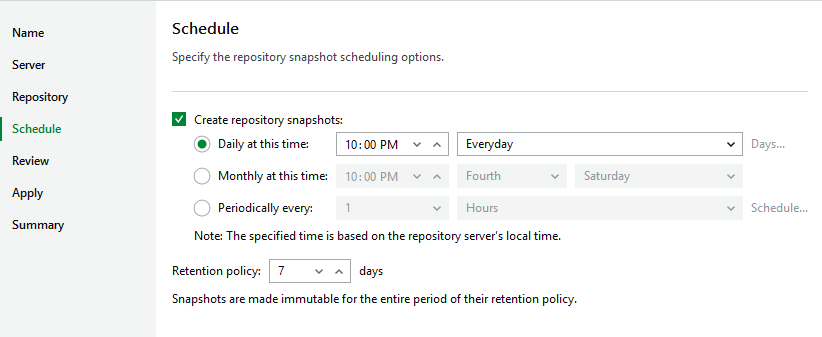
Snapshots are managed directly by the Veeam Backup & Replication server, where you can configure the scheduling and retention of the snapshots themselves.
Note: To ensure the consistency of recovery points, the frequency of snapshots should match the native backup schedule of the application using ABR.
The available recovery methods include:
Revert Snapshot: performs a complete rollback by replacing the entire contents of the NFS share with the state of the selected snapshot
Export Snapshot: mounts a snapshot as a temporary, read-only path, allowing you to browse files and perform granular restores
VEEAM ABR – CONFIGURATION
To create an ABR, the main steps are:
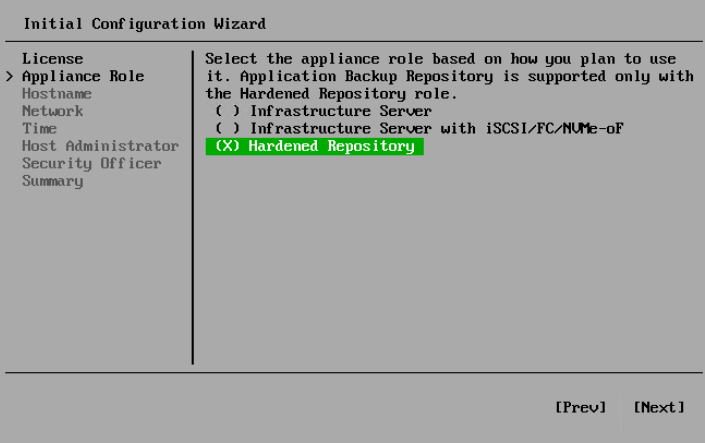
1. Deploy a Veeam Hardened Repository using VIA
2. Enable ABR functionality from the Veeam Host Management Console of the VHR
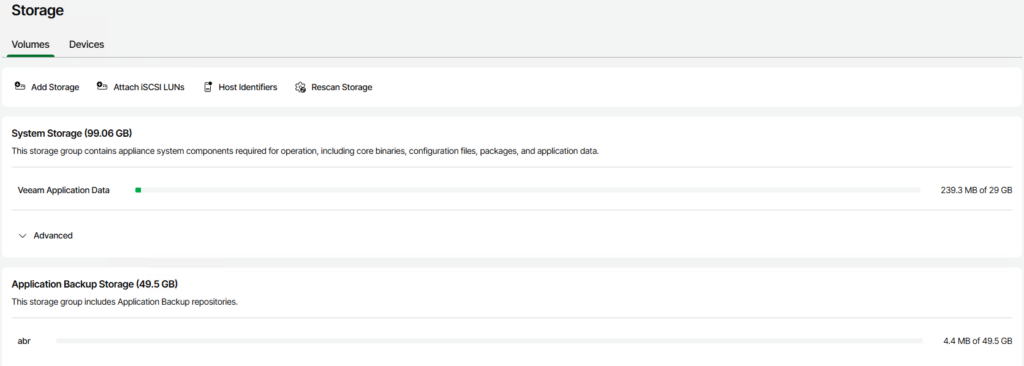
3. Configure the ABR storage (device, pool, volume)
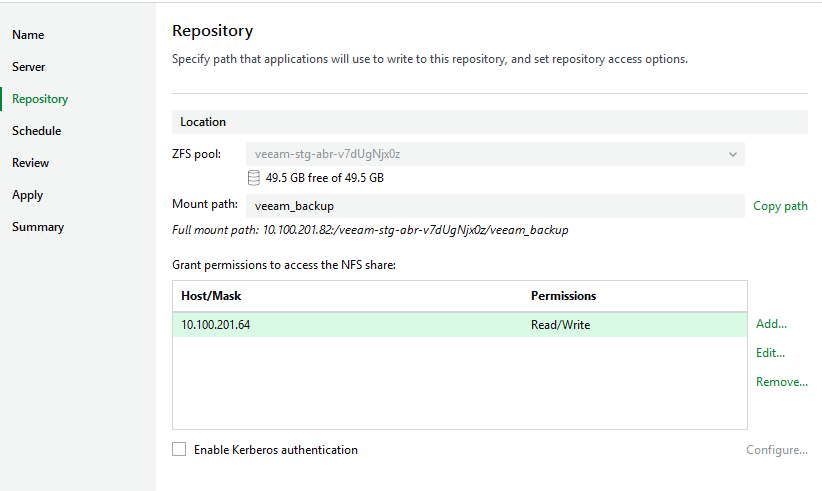
4. Add the ABR via the VBR console and configure the various specific settings (mount path, snapshot schedule)
CONCLUSION
Why should you upgrade your Veeam Data Platform installation to version 13.1?
As we’ve seen, there are a great many new features, and some of them—such as Veeam ABR—fill important gaps and can be very useful for developing and optimizing your data protection policies.
We suggest you explore the topic further by consulting the official Veeam documentation and, of course, schedule the upgrade! 💚
Less than a year after the release of the highly awaited version 13 of Veeam Backup & Replication, version 13.1 has been officially released, currently at build 13.1.1.18.
More than 70 new features have been rolled out, ranging from support fornew workloads to enhanced security and hardening, as well as general software improvements.
Let’s take a closer look at some of the most interesting new features:
Identity Protection (Active Directory ed Entra ID)
Automated Active Directory Forest Recovery: the process of restoring an entire AD forest is now automated, transforming more than 40 manual Microsoft steps into a guided, simplified procedure that reduces risks and errors in emergency scenarios; this feature, available with Essentials, Advanced, and Premium licenses, supports single-domain, multi-domain, and multi-tree topologies
Microsoft Entra ID: now supports the identification and recovery of relationships between objects, even when a new ID is created that differs from the original one; furthermore, protection is extended to Organization Contacts, Devices and BitLocker keys
Hypervisor Protection
introduced native support for Citrix XenServer, XCP-ng, and Sangfor aSV
development of the Universal Hypervisor API, a vendor-certified interface for integrating additional platforms, such as Platform9 and VergeOS
new features for already supported hypervisors, such as full integration of Nutanix AHV operations into the Veeam Web UI, the introduction of replication jobs for VMs on Proxmox, application-aware processing for HPE Morpheus VM Essentials backups, and support for SCVMM in HA with Windows Server Failover Cluster
Cloud Workload Protection
AWS: integration of Veeam Data Cloud Vault into the VBR console; added support for S3-IA repositories
Azure: integration of Veeam Data Cloud Vault into the VBR console; support for Entra ID authentication for Azure SQL Database backups; malware detection for Azure VM backups; instant recovery expanded to 250 VMs per session, with batches of 80 VMs running in parallel
GCP: support for Google Storage with immutability as repository for Google Cloud backups
Agent Protection
Agent management: direct backup to VDC Vault and Microsoft Azure Blob Storage; support for certificate-based authentication for AD Protection Groups
Veeam Agent For Windows: support for remote bare-metal recovery from the Web UI; available for download from the Microsoft Store; introduction of agent UI branding and customization
Veeam Agent for Linux: introduction of centralized deployment of the nosnap agent; support for Linux Kernel 7.0 and newer distributions, such as Ubuntu 26.04 LTS, RHEL 10.2, and Rocky Linux 10.2
Veeam Agent for Unix: support for managed deployment; introduction of malware detection for AIX and Solaris backups as well
Universal CDP: support for Linux OS for Continuous Data Protection replication (near-zero RPO)
Unstructured Data Protection
Malware Detection & Threat Hunter now also supported for file share and object storage backups
Introduction of GFS retention for unstructured backups
Archive storage as a direct target or as a secondary copy; support for automated archival tiering
Enterprise Application and Database Protection
Application Backup Repository (ABR): transforms the Veeam Hardened Repository into a managed, immutable NFS destination; this resource can be used by any application (e.g., Oracle RMAN) or external service (including network devices and IoT devices) capable of exporting or saving its own backups directly; it also supports features such as instant restore, instant export, backup copy, and tape offload
Veeam Snap Scale backup: enables the protection of databases larger than 100 TB using storage snapshots via the Veeam Universal Storage API and through the parallelization of backup tasks using multiple Veeam Linux Proxies and SOBRs scaled to ensure the required performance
Introduction of long-term retention (GFS) and tape backup for backups managed via Oracle RMAN, SAP HANA, and Microsoft SQL Server plugins
Support for Epic EHR systems and IRIS databases, leveraging the capabilities of Veeam Snap Scale Backup
Protection of Windows-based and Linux-based PostgreSQL installations in HA with clusters managed by Patroni
Hardening and Security of the Backup Infrastructure
MFA for sensitive operations: multi-factor authentication is extended to cover additional sensitive configuration operations, such as changes to Users & Roles
Hybrid FIPS + Post-Quantum Cryptography: introduces support for models that use PQC algorithms in addition to existing FIPS standards
Introduction of advanced auditing to track changes to the encryption password
Single-Port Transport: elimination of wide, dynamic port ranges for backup component communication, simplifying the configuration and security of firewall rules
Enhanced RBAC configurations, with granularity extending even to individual backup jobs
Malware Detection and AI
Enhanced malware detection, with additional advanced features for entropy-event investigation and workload-level exclusions
Veeam Intelligence: Enables the execution of operational tasks through a workflow based on approval by a Veeam Administrator
VSA and VIA
The Veeam Software Appliance and the Veeam Infrastructure Appliance have been further enhanced with the introduction of:
Drive expansion, for extending storage capacity even after installation
FC and iSCSI support, enabling the use of multipath in enterprise SAN environments
mirror updates via Veeam Enterprise Manager, eliminating the need for a custom server to update the infrastructure in environments with limited internet connectivity
exportable system metrics compatible with Prometheus and other monitoring platforms
password policy configuration directly from the Veeam Host Management Console
VSA image now also available for Hyper-V environments
Support for cross-subnet HA clusters to ensure high availability of the VSA
Single-disk deployment option for VIA installations that do not require multiple disks (e.g., Veeam Proxy)
Backup Repositories
Governance-mode immutability for Linux Hardened Repositories, allowing the immutability period to be reduced or disabled upon authorization integrated with the four-eyes process.
Support for object storage repositories in read-only mode, to connect to a second backup server for testing or disaster recovery purposes without affecting primary backups
Archive tier copy policy for SOBRs configured in Direct Archival mode (Performance Tier → Archival Tier)
Storage Integrations
Support for multiple centralized storage management systems via the Universal Storage API
Immutability for storage systems using WORM solutions with NFS/SMB protocols (e.g., NetApp SnapLock)
CONCLUSION
To view the complete list of new features and learn more about this topic, please refer to the official Veeam documentation:
In the previous article, we started exploring the capabilities of Veeam Intelligence.
Today, we’ll take a look at its natural evolution: the Veeam MCP Server.
MCP – THE NEW AI STANDARD
MCP (Model Context Protocol) is an open-source standard developed in late 2024 by Anthropic to connect AI applications (agents/LLMs) to external systems and data using a client-server architecture.
The main components of the MCP architecture are:
MCP Host: an AI application that coordinates and manages one or more MCP clients
MCP Client: a component that maintains a connection with an MCP server and retrieves context from the MCP server so that the MCP host can use it
MCP Server: a program that provides context to MCP clients
The MCP protocol consists of two layers:
Data layer: defines the JSON-RPC-based protocol for client-server communication, including connection lifecycle management, server features such as tools, resources, and prompts, and finally client features and utilities such as messages and notifications
Transport layer: defines the communication mechanisms and channels that enable client-server data exchange; the supported transport types are stdio and streamable http
MCP servers can be local, serving a single MCP client via the STDIO protocol, or remote, serving multiple MCP clients via the HTTP Streamable protocol.
VEEAM MCP SERVER
The release of the Veeam MCP Server enables the use of Veeam Intelligence via the MCP protocol, allowing AI clients (MCP-compatible) to interact with data and tools from Veeam installations.
Key benefits:
real-time, cross-system information for operators and AI agents
Centralized natural language conversational interface for supported operations
Secure, read-only access to data from your Veeam infrastructure
Comprehensive management of deployment, data exposure, and integration with AI clients
Currently, the Veeam products supported for interaction via the MCP Server are:
Veeam Backup & Replication
Veeam ONE
Veeam Service Provider Console
By interacting with the Veeam MCP Server, the AI assistant can combine real-time data from your backup environment with the Veeam knowledge base to generate a specific and reliable response.
For example, you can request analyses of the status of backups, repositories, the overall health of the infrastructure, malware detection events, and much more.
For details on available features, please refer to the official link.
INSTALLATION & LAB
For this lab, it was used:
Windows 11 client
Docker Desktop with WSL2
Visual Studio Code with the GitHub Copilot extension
Prerequisites: Docker or Node.js v24, Veeam license (not the Community Edition)
The setup of the Veeam MCP Server consists of the following main steps:
1 clone repository
2 build docker image
3 get MCP client config file info (product type, URL, Veeam Administrator credentials)
4 connect Github Copilot account to VS Code
5 setup MCP Client into VS Code
6 add MCP server
7 start MCP server
8 use Veeam Intelligence through the MCP Server in Github Copilot chat
VEEAM MCP SERVER – HTTP STREAMABLE
To enable remote access via the HTTP Streamable protocol for cloud-based agents or multiple users within your organization, you can use the Veeam Intelligence MCP Streamable Wrapper feature.
In this case, the “veeam-mcp-server” repository must be imported into the directory where the “veeam-intelligence-mcp-streamable” repository was downloaded.
Prerequisites: npm and Docker Compose
The setup for the Veeam MCP Server HTTP Streamable is similar to the previous one, but with a few differences:
1 clone repository
2 install dependencies (npm)
3 get MCP client config file info (product type, URL, Veeam Administrator credentials)
4 edit config.json file
5 start wrapper
6 connect Github Copilot account to VS Code
7 setup remote MCP Client into VS Code
8 add MCP server
9 start MCP server
10 use Veeam Intelligence through the MCP Server in remote Github Copilot chat
For details on this additional feature, please refer to the project’s GitHub page.
CONCLUSION
Using Veeam Intelligence, combined with the capabilities of the Veeam MCP server, allows you to fully leverage the potential of AI, with the ability to integrate agents that extend the workflow to other business processes, such as opening an incident on your ticketing portal in the event of backup alerts.
In short, the path to AI evolution is set; let’s get ready for many more innovations! 💚
The topic of AI has now become a major part of our lives, and it is about to revolutionize the world of IT, hopefully in a positive way.
Veeam Software, a leader in data protection, has long been developing what has since been renamed Veeam Intelligence.
VEEAM INTELLIGENCE
It is essentially a Gen-AI chatbot, based on a private OpenAI’s GPT-4 and trained on data from Veeam’s technical documentation, Knowledge Base, and official R&D forums.
Thanks to this agent, integrated into the Veeam Data Platform, you can interact using natural language, speeding up manual tasks such as verifying backup results, analyzing alerts, and reviewing complex reports.
Veeam Intelligent is available in two configuration modes:
Basic mode: allows you to ask general questions about the features of various Veeam software products or common issues
Advanced mode: based on data from the user’s environment, it allows you to perform operations specific to that particular context, such as analyzing the backup infrastructure, customizing reports, or using targeted threat scan and ransomware detection techniques
In addition, you can interact with the AI assistant within the Help Center, the main access point to all official documentation.
The KB4539 article provides a detailed description of all the new features introduced over time in this functionality.
Veeam also provides a prompt library, which is still limited in content but is useful for those new to using Veeam Intelligence.
The application of AI in Veeam is not limited to this Gen-AI assistant; thanks to advanced machine learning techniques, it is also used for the constant monitoring and analysis of our data protection infrastructure, detecting anomalies and identifying suspicious activity before, during, and after a backup.
💡 Tip: Don’t forget to set up the “Morning Coffee Report”, a daily AI-generated report that summarizes backup sessions, highlights the most significant issues found, and provides helpful tips for resolving them!
CONCLUSION
In a world where technology is evolving at an exponential rate, the use of AI in data protection can definitely bring enormous benefits in terms of accuracy, operational reliability, and, of course, time savings, allowing for the optimization of “human intelligence” for higher-value activities.
P.S.: in the next article, we’ll explore the latest evolution of Veeam Intelligence: its integration with the MCP Protocol, an open standard developed by Anthropic to connect AI applications to external data and tools.
Following the recent article on the use of Custom Settings in the Veeam Software Appliance, we will now look at another topic that involves some significant differences compared to the Windows version: password management for local users on the Veeam Backup & Replication Server.
VSA – USERS AND ROLES
We have always been familiar with the classic VBR installed on Windows OS, where we create new local users via the “Local Users and Groups” interface, accessible directly via the “lusrmgr.msc” snap-in or integrated within the “Computer Management” tool.
Even when resetting a user password, the change is always made via this panel. The important thing, of course, is to always have administrative access to the OS.
With the introduction of the Linux-based VSA, things have obviously changed.
User management is carried out, in this case, via the Veeam Host Management Console, and is only permitted for users with the Host Administrator role.
Furthermore, if the user with the Security Officer role is also enabled during the initial wizard, it will be possible to perform a series of specific operations, which we will look at in detail shortly.
Note: if the Security Officer step is skipped during installation, in order to enable the default user “veeamso” at a later stage, it will be necessary to reinstall the VSA from scratch.
VSA – PASSWORD RECOVERY
Normally, a standard user’s password is reset by a Host Administrator.
In turn, to change the password of a Host Administrator who can no longer access the Veeam Host Management Console, another Host Administrator is required. Upon their next login, the user will need to reconfigure their MFA.
What happens, however, if the Host Administrator who needs to recover their password is the only user in the system with this role?
There are two procedures: one to use if there is a user with the Security Officer role in the system, and one if this role has not been assigned.
In the first case, the Host Administrator initiates the password recovery process via the corresponding “Forgot password” link. This process must be approved by the Security Officer, who then enables the Host Administrator to receive the credential reset email and complete the wizard for creating new credentials.
In the second case, however, as the Host Administrator account is the only one available in the system, it will not be possible to carry out the above password recovery, but an “emergency” procedure will need to be performed.
As indicated in the official KB4761, you must use the “LiveOS ISO” provided by Veeam and follow the steps below:
Mount the ISO in the VSA VM
Restart the VM and boot from the ISO
Launch the Veeam Live Environment wizard
Log in using the default credentials “root/veeam”
Set a new root password for the Live Environment
Once logged in, we can begin the password recovery process.
The first step is to mount the VSA’s filesystem: veeam_mount_system
The second step is to access the VSA’s filesystem with root privileges: veeam_chroot_system
Once inside, depending on your needs, you can:
unlock an account: faillock –user –reset
reset a password: passwd <username>
Once the account recovery operation is complete, exit LiveOS and reboot the VSA.
Note: to reset the MFA using this procedure, you must contact official Veeam support. If the MFA to be reset belongs to a Security Officer account, the only possible method is via the recovery token.
Tip: to review/modify configurations relating to account lockout policies, access the file /etc/security/faillock.conf; for password requirements, however, the relevant files are /etc/security/pwhistory.conf and /etc/security/pwquality.conf
CONCLUSION
We have seen how the VSA administrative account recovery procedures differ from those of a classic Windows-based VBR server, but by following the correct steps, it is still possible to get out of trouble.
Tip: we recommend always having at least one additional user configured with the Host Administrator role, preferably without MFA, to be used as a “break glass account” exclusively in emergencies.
The recent release of Veeam Backup & Replication 13 has certainly brought a breath of fresh air to the Veeam world.
With the introduction of the Linux-based VSA (Veeam Software Appliance), we now have a new backup server concept, with many additional features and, above all, an extra eye on security.
But as with all new features, we need to pay attention to the prerequisites, carefully evaluating any integrations with what we had configured in our old and beloved Windows version.
An example that stands out: Custom Settings.
VSA – CUSTOM SETTINGS
In the standard version, whenever a particular setting needs to be applied that cannot be configured via the console, a registry key must be added.
In Windows, for example, the registry path that allows you to enter custom values for the backup server is HKLM\SOFTWARE\Veeam\Veeam Backup and Replication\.
Among the most common configurations are, for example:
Enable support for DDBOOST – Governance Mode
Key Location: HKLM\SOFTWARE\Veeam\Veeam Backup and Replication\ Value Name: DDBoostSkipComplianceModeCheck Value Type: DWORD (32-Bit) Value Value Data: 1
Force the priority use of networkless connections (VIX) for guest processing at disadvantage of the RPC protocol
Key Location: HKLM\SOFTWARE\Veeam\Veeam Backup and Replication\ Value Name: InverseVssProtocolOrder Value Type: DWORD (32-Bit) Value Value Data: 1
In the Linux-based VSA, of course, we do not find a registry of this type.
These custom settings are saved in configuration files.
For example, the correspondence for the backup server section is:
Registry Key
VSA Config File
HKLM\SOFTWARE\Veeam\Veeam Backup and Replication
/etc/veeam/veeam_backup_and_replication.conf
If the parameter does not need to be entered in a subkey, the corresponding section will be [root].
The configuration files can be accessed via the new Veeam Host Management Console, a web interface for accessing the administrative management section of the appliance.
We recommend downloading the desired file, modifying it, and uploading it from the same console.
NB: if the Security Officer role is active, uploading a configuration file requires approval by a user with this role.
All changes made to configuration files are saved in a corresponding log file.
For example, for the backup server section, it is reported in /var/log/VeeamBackup/RegistryOptions/veeam_backup_and_replication.conf.log
CONCLUSION
We have seen how the new features of v13 are certainly interesting, but they require some further study and on-the-job training to be managed effectively.
PS: detailed information on VSA custom settings can be found in KB4779.
One topic that I believe is still underestimated is recovery verification: it’s good to have a backup of our data, but are we sure that backup is valid and functional when we need to use it?
If no tests are performed, we could encounter potential latent problems with backup data corruption and be unable to use it when needed.
Many companies are required to perform periodic restore tests for compliance reasons.
Many others, however, do not always pay the same attention to this.
While before the advent of ransomware the rule was “have a backup, preferably in a storage location other than the production one,” nowadays a solid data protection strategy cannot ignore the best practices outlined in the Golden Rule 3-2-1-1-0:
As we can see, backup recoverability is a must, and it is our responsibility to put it in place!
In this post, we will discover that configuring verification tests using Veeam Backup & Replication is quick and easy, so why not do it?
SURE BACKUP
The Veeam SureBackup feature allows you to set up a scheduled or manual task to verify the actual restorable state of your backup data.
The SureBackup job can be set up in two different modes:
Full recoverability testing: allows you to restore VMs from backup and restart them in an isolated environment so that you can test the full functionality of the applications
Backup verification and content scan only: allows you to perform an integrity check of the backup files, as well as a content analysis to check for malware or sensitive data
Full recoverability testing
This approach is essentially based on two Veeam features: instant recovery and virtual lab.
Thanks to the first feature, VMs can be restarted in our hypervisor while keeping virtual disks and configuration files directly in the backup repository, without having to copy them to production storage beforehand.
The second feature, on the other hand, creates an isolated virtual environment on demand, automating the configuration in our hypervisor of virtual switches and virtual networks dedicated to restore testing. We will discuss the correct configuration of the virtual lab in a later post.
A key concept in this modality is application groups, which are objects containing one or more VMs with dependencies between them, so that the recovery of a complete application stack can be tested (e.g., database server/application server, primary domain controller/secondary domain controller, etc.).
Our Sure Backup job will therefore consist of:
1 application group
1 virtual lab
Another important aspect is definitely the customization of verification tests: Veeam allows you to select different types of automatic checks on VMs within the Sure Backup job, from standard ones such as heartbeat, ping, and predefined applications/ports (DNS, Domain Controller, SQL Server, etc.) to the possibility of executing custom scripts to verify specific applications.
Prerequisites: Valid VUL license, or at least Enterprise socket (with a Standard license, only manual tests will be possible).
Note: Recovery verification can also be performed on VM replicas using SureReplica jobs, which are always based on the concepts of virtual labs and application groups.
Backup verification and content scan only
By choosing this option, the virtual lab and application group are no longer necessary, as the goal is simply to verify data consistency and check for malware or sensitive data that you want to keep track of.
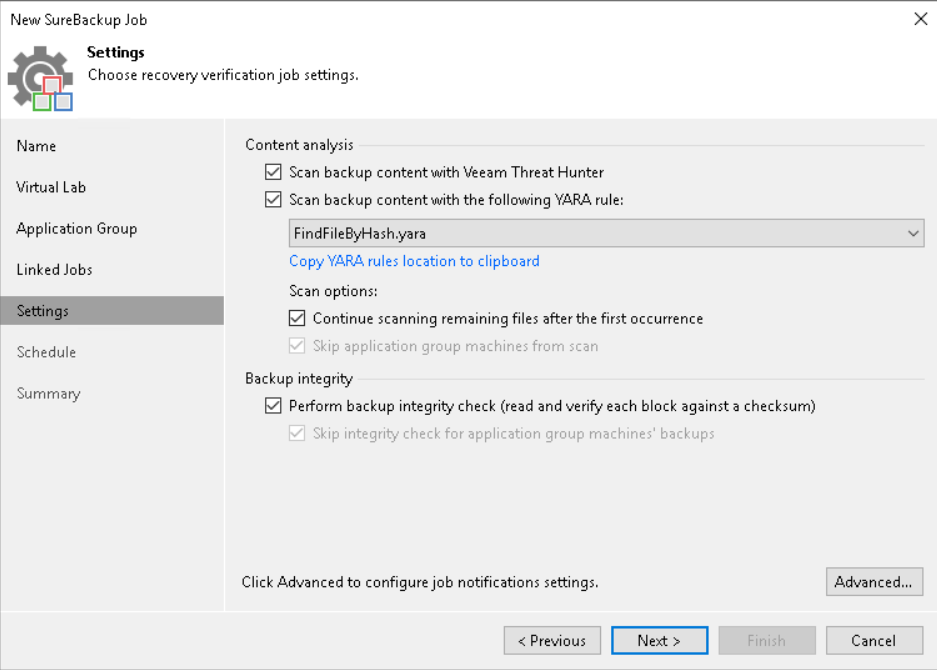
Veeam checks the VMs sequentially, using the native Veeam Threat Hunter engine or the antivirus software on the mount server to prevent malware.
Optionally, you can also choose to use fully customizable YARA rules to identify traces of possible malicious activity on the VMs being checked or simply sensitive data on the server.
CONCLUSION
As we have just seen, the Sure Backup job allows us to test the correct recovery of our backup data in a simple and automated way.
Come on, let’s all hurry up and configure this fantastic feature! 💚
On 3 September 2025, the long-awaited Veeam Backup & Replication version 13 (build 13.0.0.4967), also known as Veeam Software Appliance, has been released.
As announced in a previous article, the main new feature of this release is the Linux appliance developed by Veeam.
In this early release, it will only be available for new installations. At the end of 2025, however, the full version of Veeam Data Platform 13.0.1 will be released, which will include the traditional Windows version and allow upgrades from previous versions.
Note: In the coming weeks, Veeam will release a tool for migrating from classic VBR Windows to VSA Linux. You can register now on this official page to receive support as soon as the tool is available.
There are so many new features, let’s try to describe the most interesting ones.
Veeam Software Appliance (VSA)
The heart of this new version: the backup software has been packaged with a Linux-based operating system, with minimal components required for running it (JeOS), and pre-hardened according to DISA STIG rules to limit the attack surface.
Core services have also been reviewed from a security perspective and re-engineered to work with non-administrative system accounts. Deployment is really quick and easy, with minimal post-installation management, including a web-based console and automated updates (OS, software and third-party components).
It can be downloaded in ISO format or even as OVA for installation on virtual environments.
True Zero Trust & Lockdown Mode
To prevent critical changes to the backup infrastructure, you can designate a user with the role of Security Officer who will be responsible for approving the most sensitive operations.
It is also possible to activate lockdown mode to prevent any unauthorised addition of new components to the infrastructure.
All in One
For small environments, such as remote offices, the new VSA allows you to have not only the OS and software within the appliance, but also an immutable repository (VHR).
Obviously, although best practice recommends keeping the two functions separate, it is still an option to consider in specific scenarios.
Veeam Infrastructure Appliance (VIA)
Based on the same JeOS as the VSA, it allows you to scale the core components of your backup infrastructure quickly and easily. Specifically, there are three possible profiles that can be installed:
a general-purpose appliance, which can take on any role in your backup infrastructure
an appliance with iSCSI and NVME components for use in direct SAN backups
a VHR appliance (Veeam Hardened Repository)
Downloadable from the “Extensions and other” section of downloads on the official Veeam website.
Veeam LiveOS
This ISO has been made available to boot from the VSA in case of access issues, for example if the web console is unreachable.
Further information and download links can be found here.
High Availability
A feature long requested by the Veeam Community, it allows you to install two VSA nodes in active/passive mode and minimize RPO/RTO in the event of a primary VBR failure.
HA is guaranteed thanks to continuous replication of the PostgreSQL config DB between cluster components, also supporting high-latency networks.
The only downside is that a Premium license is required.
RBAC
V13 introduces the ability to create custom Veeam roles, allowing you to select in a very granular way which operations are allowed and on which workloads.
Single Sign On (SSO)
Integration with external identity providers is now also possible for access to the backup console, ensuring centralized and more secure authentication management.
Linux only
Starting from this version, only Linux components can be used in our backup infrastructure. There are minor exceptions in the case of workloads with ReFS file systems or those using Windows deduplication.
Nutanix AHV
The AHV appliance is now fully integrated within VBR and does not require separate management.
Enterprise Application
Application plugin backup now also supports direct writing to object storage repositories.
The list of new features continues…below you can find some links to the official documentation for further information:
The topic of security is on the daily agenda for us professionals in the IT world nowadays: news of hacker attacks, data breaches, and ransomware requests are no longer news, but are unfortunately everyday occurrences.
💡: for staying up-to-date on the latest ransomware attacks around the world and many other insights on the topic I suggest checking out the Ransomware Live site
In this scenario, Veeam Data Platform 12.3 helps us protect our data and reduce the impacts of a cyberattack.
Let’s find out what are all the security-oriented features built into the software.
SECURITY FEATURES
The latest Veeam 12.3 release brings with it many security features that have been gradually introduced and improved over the years by the leading US Data Protection company.
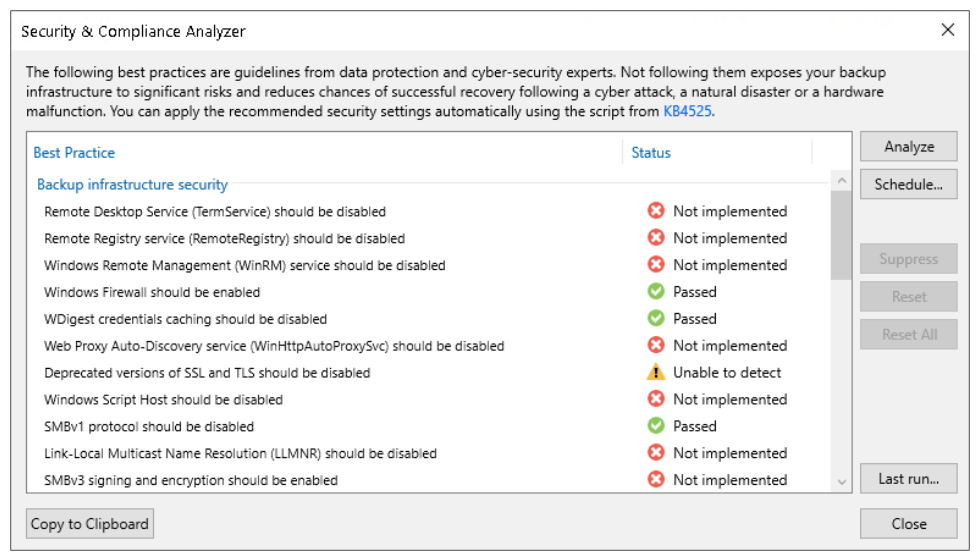
Security and Compliance Analyzer
It is a tool integrated into the VBR console, it analyzes several configurations of backup infrastructure components by checking compliance with suggested security best practices.
Some examples: disabling obsolete/vulnerable protocols, verifying presence of hardened/immutable repositories, 3-2-1 rule, encryption password complexity, having the latest patches installed
💡: you can schedule the automatic scan and send it via email
Malware detection
It is the real engine of cybersecurity built into Veeam 12.3, and includes several features. Below are the details:
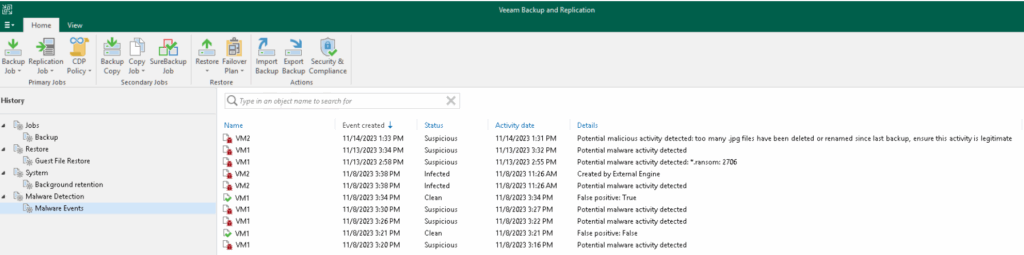
Supported for VMWare, Hyper-V, Nutanix, and Veeam Agent for Windows backups, allows you to scan the indexes of a file system (upon enabling the “guest file system indexing” option on the backup job) and flag any suspicious files/extensions with a specific event in the VBR console.
It is managed by the Veeam Data Analyzer Service, which at the end of each backup compares the indexing contents with the “SuspiciousFiles.xml” file, where indeed a (customizable) list of suspicious files and extensions is contained.
💡: for backup servers that have internet browsing blocked to Veeam addresses as well, you can manually update the list of suspicious files by downloading the “SuspiciousFiles.xml” file following this KB
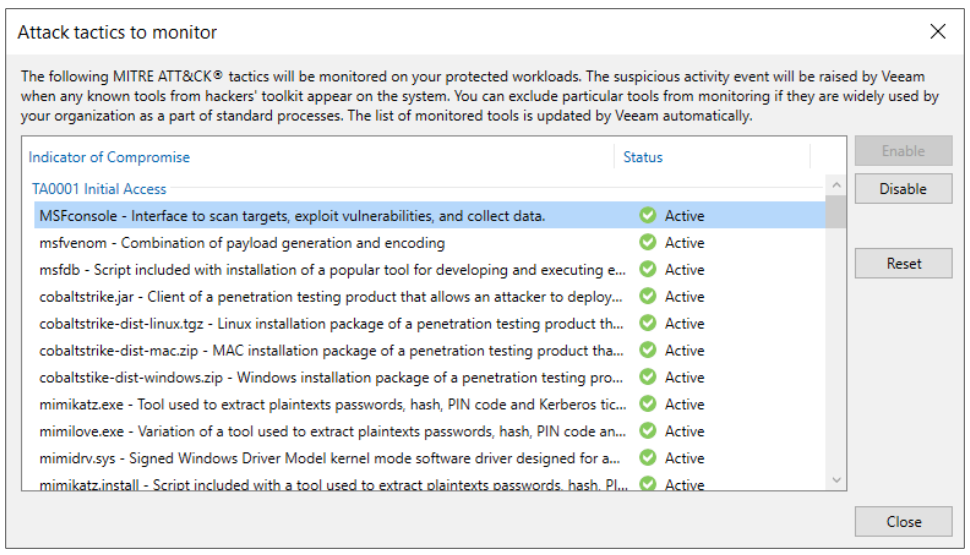
This xml file also contains a list of the IoCs (Indicators of Compromise) selected from the matrix developed by the MITRE ATT&CK, i.e., files that are not malicious but may indicate the presence of suspicious activity in progress. In this case, the Veeam Data Analyzer Service compares the indexing file of the last two restore points (created at least 25 hours and maximum 30 days apart), looking for any potential indicators of compromise. It is also possible here to choose which default IoCs to monitor and which not.
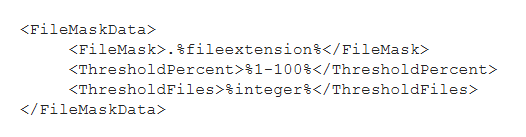
Another feature also managed by the Veeam Data Analyzer Service is the one that identifies any multiple file deletions: by comparing the indexing file of the last two restore points (created within a time window of at least 25 hours and maximum 30 days), if there are at least 100 files of a specific extension and in the last restore point more than 50 percent of the total are deleted, a malware detection event is created. Extensions are recorded in the file “TrackedFiles.xml”, which can be customized by changing the parameters of Thresholdpercent and Thresholdfiles, or even adding specific extensions or ignoring file system paths that we do not intend to monitor.
Finally, with the same logic of comparing the indexes of two restore points, the presence of multiple extension changes is also identified; based on the occurrence of certain conditions, this time not customizable, such as at least 200 files with new extension and not present in the “SuspiciousFiles.xml”, a malware detection event is triggered.
💡: logs of malware detection events, in addition to the dedicated section within the VBR console, can be accessed in the default path “C:\ProgramData\Veeam\Backup\Malware_Detection_Logs”
💡: you must also consider that by default the indexing data is kept in the Veeam Catalog for 14 days. If you want to increase this value, you can use the Veeam Enterprise Manager, which will maintain an extra copy of the Catalog with configurable duration
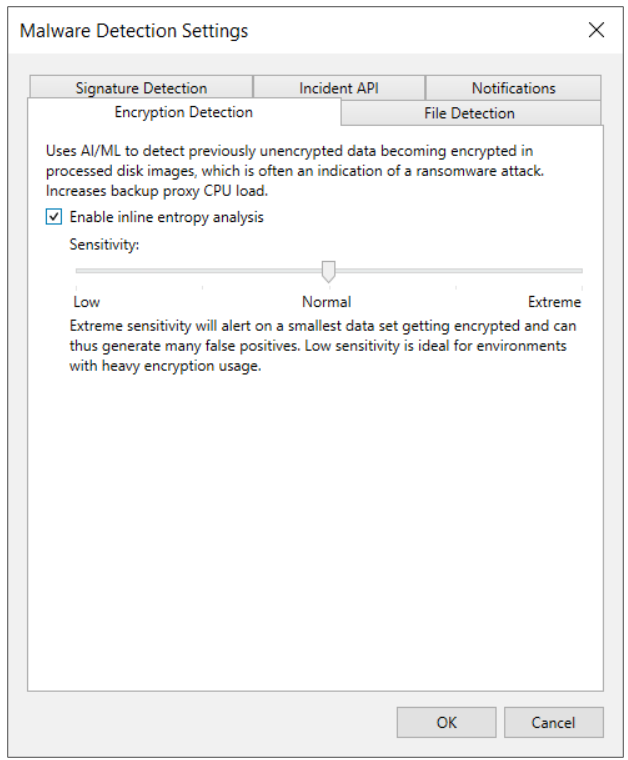
While the features just described are based on post-backup analysis at the file system level, inline scan acts at the image/block level during a backup, detecting possible entropy generated by malware, such as encrypted files or artifacts, text files that may contain onion links or ransomware notes. Technically, during each backup session on the Veeam Proxy used, files are generated (RIDX format, one file for each virtual disk processed) containing the disk metadata (disk name, creation time, disk size, used size, sector size, partition table) and ransomware data (encrypted data, file types, onion addresses, ransomware notes). After the backup is complete, these files are copied to the VBR Catalog, and scanned by the usual Veeam Data Analyzer Service, which will then save the results of its analysis in the “RansomwareIndexAnalyzeState.xml” file. When a new restore point appears, the service compares the most recent and oldest RIDX file (created in a time window of 25 hours and maximum 30 days), going on to update the “RansomwareIndexAnalyzeState.xml” file. If anything suspicious is identified, a malware detection event is created and the object, the specific virtual machine, marked as “suspicious”.
💡: the inline scan feature is disabled by default; in case you want to enable it, keep in mind that it increases the CPU usage of the proxies and RAM/Disk space of the VBR
💡: to check in detail which files have been identified as “encrypted data,” use the procedure provided in this KB
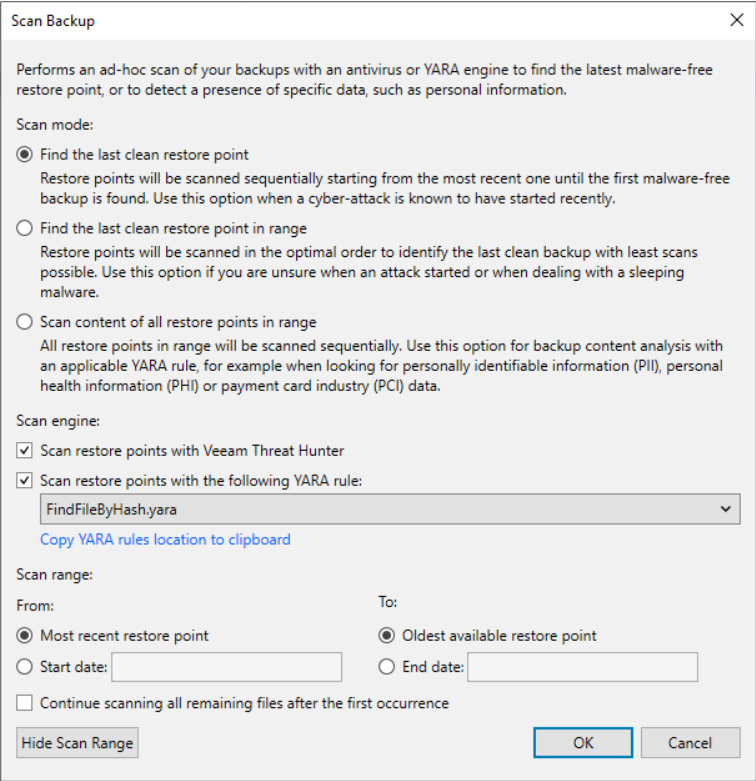
Using this feature it is possible to find a clean restore point (not infected with malware) or to identify specific information, such as sensitive data. Currently, scanning only Windows servers (VMs or agents) via, precisely, a Veeam mount Windows server is supported.
There are three engines that can be used for scanning:
veeam threat hunter, a Veeam service automatically installed on mount servers and running in the background. Before each scan, it is checked for any malware signature updates. 💡: a registry key can be set to configure file and folder exclusions from the scan
3rd party av, as an alternative to the veeam threat hunter, you can use a third party antivirus pre-installed on the mount server; you can find information about the default avs and add custom ones using the “AntivirusInfos.xml” file in the mount server.
yara rule: using files with a well-defined syntax, it is possible to search for infected restore points or sensitive data. In the former case, if a clean restore point is not found, a malware detection event is generated.
Whenever the scan finds a restore point that is not clean, it is marked as “infected”. If the scan session finds at least one clean restore point, it ends in “success,” otherwise in “failed.”
💡: it is possible to suppress the event generation by inserting this line within the yara file: <rule SearchFileHash : SuppressMalwareDetectionNotification>
💡: the complete scan logs can be found in the following directory of the mount server C:\ProgramData\Veeam\Backup\FLRSessions\Windows\FLR__<machinename>_\Antivirus
Secure restore
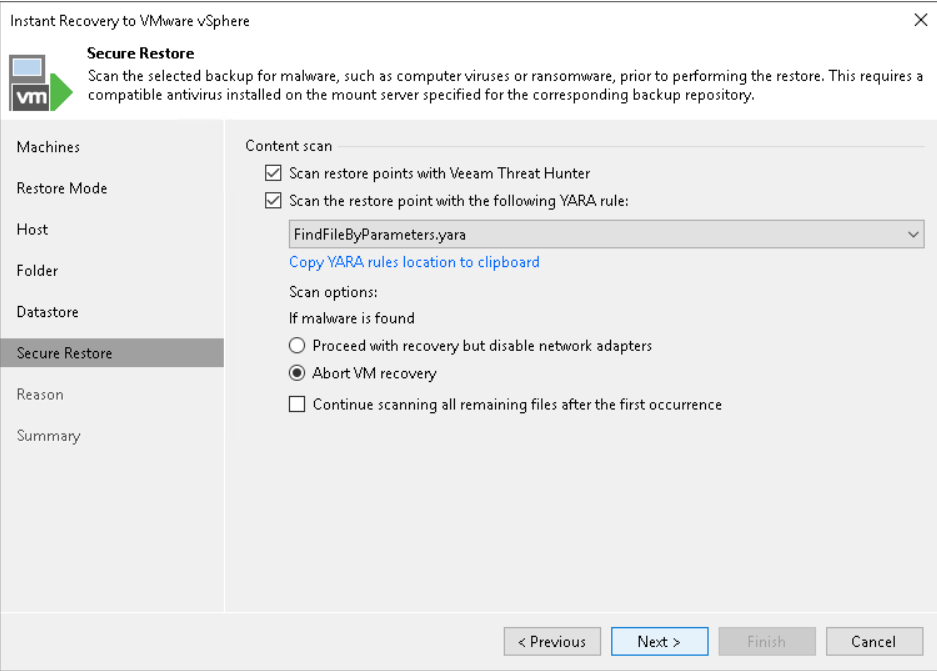
This feature allows the scan engines described above to be exploited during a restore.
Specifically, the following scenarios are supported:
◦ Instant Recovery ◦ Virtual Disks Restore ◦ Entire VM Restore ◦ Restore to Microsoft Azure ◦ Restore to Amazon EC2 ◦ Restore to Google Compute Engine ◦ Disk Export
💡: you can schedule automatic scanning of backups using SureBackup
💡: if you have VRO, you can take full advantage of automation features in a clean room environment
Incident API
Veeam not only leverages its own malware detection capabilities, but also offers the ability to integrate third-party tools. By exposing Veeam’s specific REST API, external monitoring and analysis tools are able to automate incident management and incident response processes to the point of involving the backup infrastructure as well. In fact, an automatic quick backup can be launched upon receipt of an external threat detection event.
Syslog integration
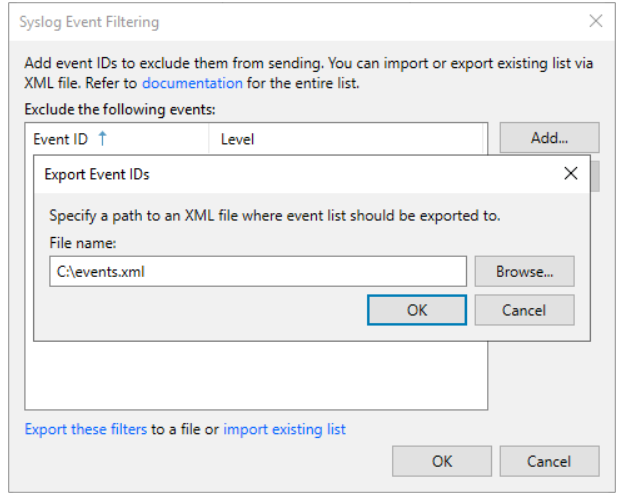
Within Veeam it is possible to configure the forwarding of events to external syslogs, following the RFC 5424 standard
It is possible to exclude the forwarding of certain events, either by entering them manually in the interface or via xml files.
💡: the full list of events managed by Veeam 12.3 can be found here
💡: for advanced configurations please refer to this KB
Analytics View – Veeam Threat Center
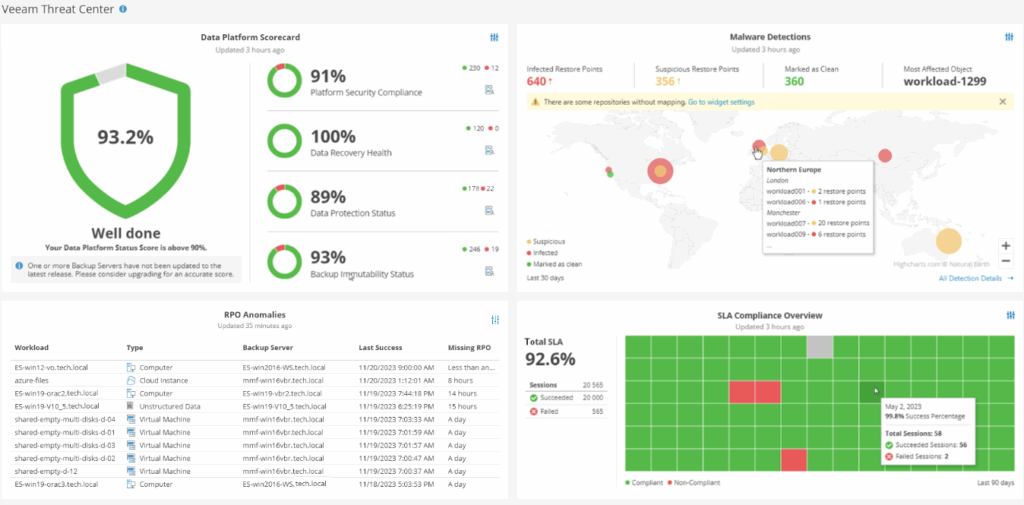
It is possible to integrate within the VBR console the view of some Veeam ONE dashboards, such as the Veeam Threat Center one, which embeds a set of information about the global security and compliance status of our backup infrastructure.
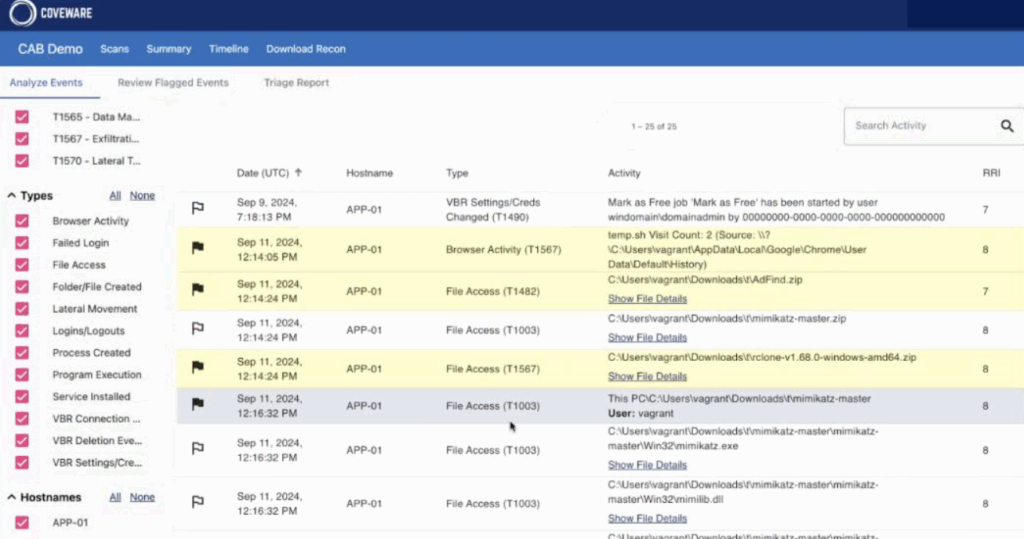
Recon scanner
This feature is one of the latest additions to the Veeam Data Platform, and is based on technology developed by Coveware, a leading Cybersecurity Incident Response company acquired by Veeam in April 2024.
It consists of installing an agent in VBR environments that continuously collects data in order to proactively identify possible suspicious activity or the use of TTPs.
With each full system scan, the agent the results can be viewed directly in the dedicated Coveware portal.
💡: it requires Veeam Data Platform Premium license version
External projects: Veeam decoy / Veeam vScan
It is also right to mention two external open source projects, but also maintained by the Veeam community. These are Veeam Decoys and Veeam vScan, which always fall under the security domain.
The former is a system simulates multiple Veeam and Windows services, such as Veeam Backup Server services, Veeam Hardened Repository, Veeam Windows Repository, Veeam Backup Enterprise Manager, etc. . All captured connection attempts, including information such as source port, source ip, or credentials used, can be sent to a centralized syslog or via email.
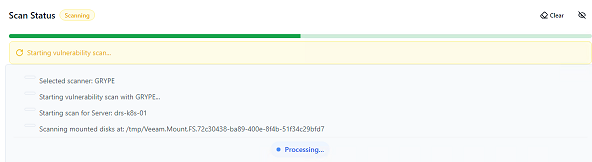
The second allows vulnerability assessments to be performed on existing backup data, using the open source tools Trivy and Grype.
CONCLUSION
In short, as we have seen the security features present in Veeam Data Platform 12.3 are numerous and useful.
We are now waiting to find out what’s new in the next versions! 💚
After the Veeam Decoy Project a few months ago, here is another very interesting tool developed for the Veeam community.
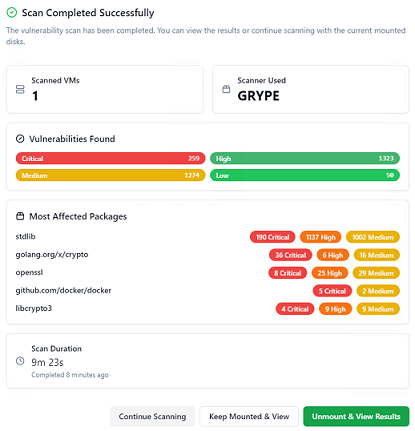
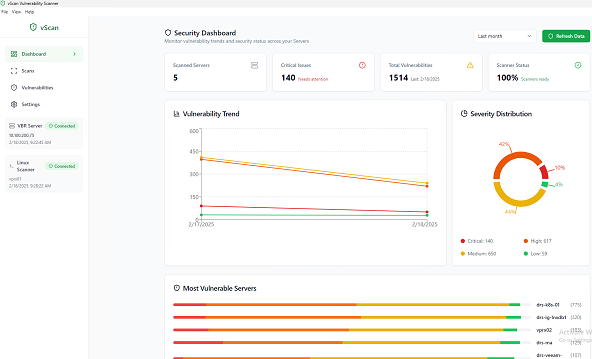
This is once again an open source project in the security area: integrated with Veeam Backup & Replication, it enables vulnerability assessments on existing backup data, using the open source tools Trivy and Grype.
The solution is designed to help manage situations such as security incidents, during which a specific server may be required to be restored at a specific point in time. Using vScan, it is possible to analyze that backup and check what vulnerabilities it has at the OS level (Linux only) before putting it back into production.
What would happen, in fact, if an attacker was still in our network ready to exploit our systems again?
Let’s explore some details of this tool.
Installation requirements
OS (client): Windows 10+
CPU: 1 core
RAM: 512 MB
Disk: 500 MB
Software: VBR console e Veeam Powershell module
Veeam version: 12.x
Linux server for scan: Rocky Linux 9.x / Ubuntu 22.x
Backup support: vSphere VM, Linux OS
Credentials Linux Server for Scan: root or user with sudo
Use of a managed or external VBR linux server for scanning
Dashboard with vulnerability and severity trends
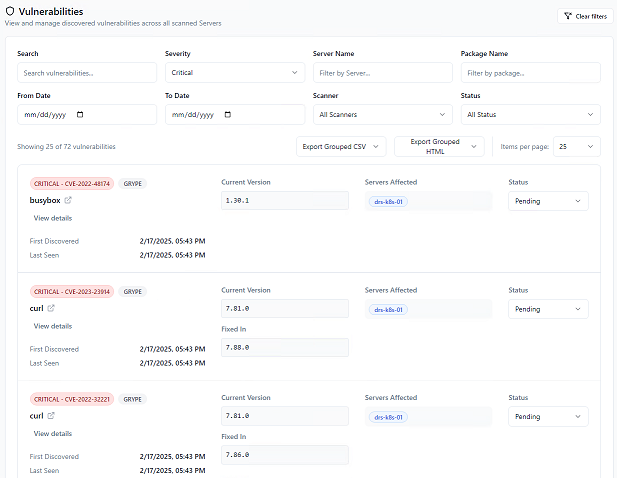
Vulnerability list synchronized with Nist NVD and Github Advisory database
CVE check contained in the CISA Known Exploited Vulnerabilities catalog
Status tracking of detected vulnerabilities
Ability to filter detected vulnerabilities by severity, status, server name, etc.
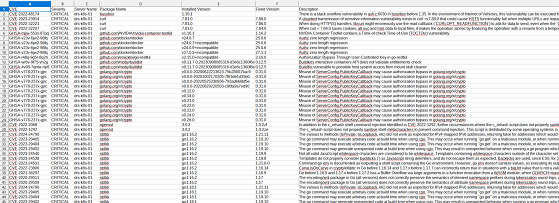
Export of results to CVS/HTML
Email notifications
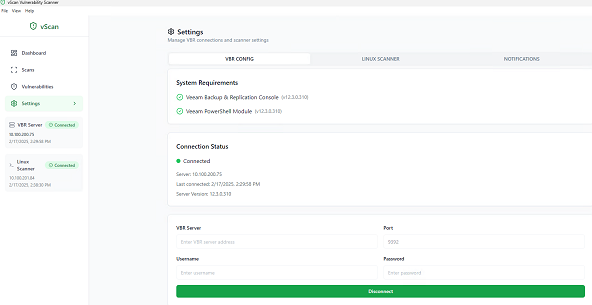
Connection status
Conclusion
The tool is very simple to setup and use, the graphics is minimal but attractive. This version only supports scanning Linux machines on VMware, but there will be improvements for sure in the next releases.
Obviously, it is not to be considered as something to prevent security incidents or to be used as a replacement for the more classic vulnerability assessment tools on live production systems. Instead, it can be categorized, alongside the malware detection features already included in the latest versions of Veeam such as Antivirus/YARA Scan and Veeam Threat Hunter, as an extra weapon to perform additional checks on our last barrier of defense, the backup data.